Back to FAQ
Setting up Email Account with Outlook Express
Before starting:
- Make sure your domain name loads. If it doesn't load your your email account wont work.
- Make sure you have setup your email accounts at yourdomain.com/cpanel .
You are now ready to begin setting up your email accounts.
- Open Outlook Express
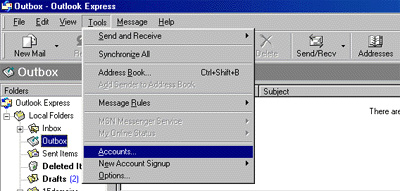
- Go to "Tools" and click on "Accounts"
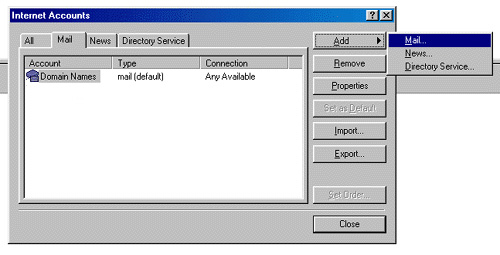
- A "Internet Accounts" window will pop up. Click on "Add", then click on "Mail".
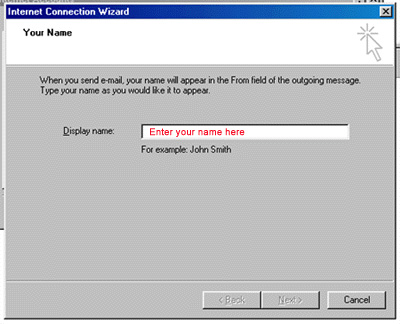
- This will start up Internet Connection Wizard. Enter your name where it says "Display name:" and click "Next" at the bottom right.
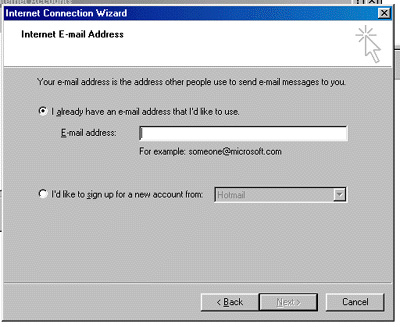
- Enter your Email address in the input box. This does NOT have to be your "username@yourdomain.com"( you can use "john@yourdomain.com, webmaster@yourdomain.com, etc). Then click Next.
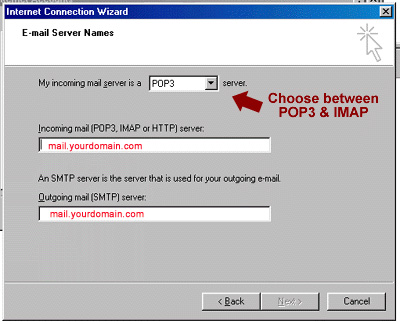
- In the Incoming mail (POP3�) field type mail.yourdomain.com
In the Outgoing mail (SMTP)� field type mail.yourdomain.com
(so if your domain name is elitepolls.com, then you would put "mail.elitepolls.com" there). Click Next.
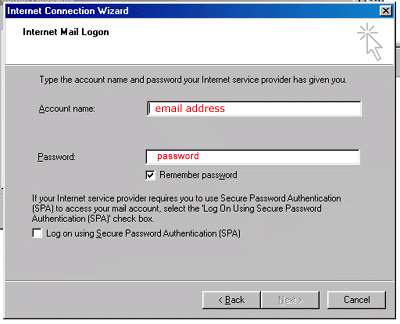
- Now type in your username that you have setup from cpanel using the following format: "yourusername@yourdomain.com"
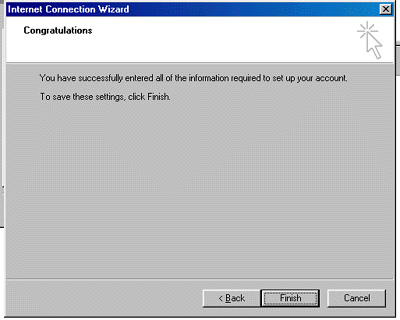
- Just click Finish and you're done!
Back to FAQ
|