Back to FAQ
Setting up Email Account with Outlook 2007
Before starting:
- Make sure your domain name loads. If it doesn't load your your email account wont work.
- Make sure you have setup your email accounts at yourdomain.com/cpanel .
You are now ready to begin setting up your email accounts.
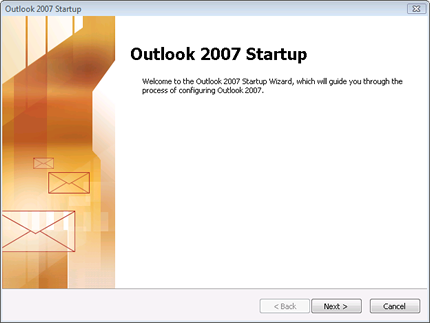
- Start Microsoft Outlook 2007. When the Startup Wizard displays, click Next.
- NOTE: If the Startup Wizard doesn't automatically display, from the Tools menu, select Account Settings, and then click New. In the Add New E-mail Account dialog box, select IMAP, then click Next.
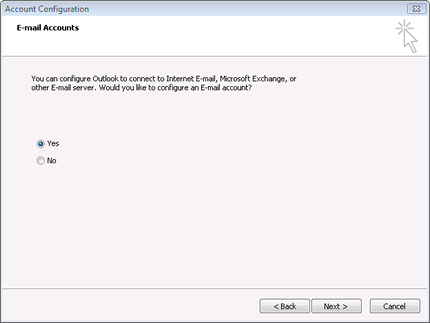
- On the Account Configuration page, select Yes to indicate you want to configure an email account, and then click Next.
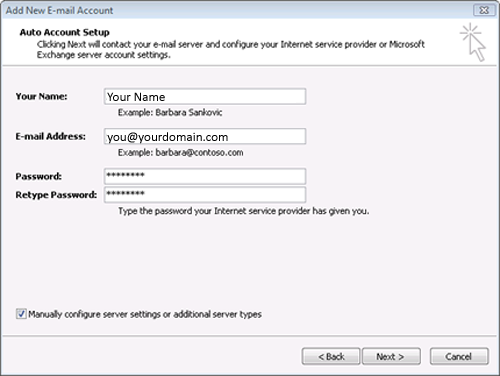
- In the Auto Account Setup page, enter the following:
Your Name
Enter your first and last name.
E-mail Address
Enter your email address.
Password
Enter the password you created for your email account.
Retype Password
Enter your password again.
- At the bottom of the page, select Manually configure server settings or additional server types, and then click Next
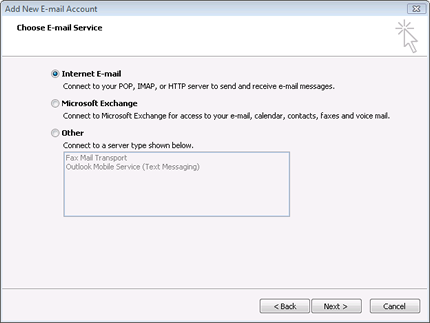
- On the Choose E-mail Service page, select Internet E-mail, and then click Next
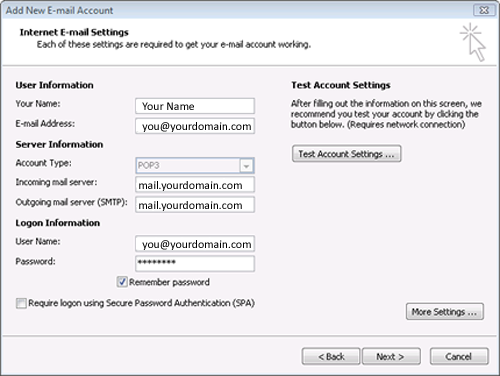
On the Internet E-mail Settings page, enter your email account information as follows:
Your Name
Enter your first and last name.
E-mail Address
Enter your email address.
Account Type
Select POP3.
Incoming mail server
mail.yourdomain.com for your incoming mail server.
Outgoing mail server (SMTP)
Typemail.yourdomain.com for your outgoing mail server.
User Name
Enter your email address again.
Password
Enter the password you created for your email account.
- Select the Remember Password checkbox, and then click More Settings.
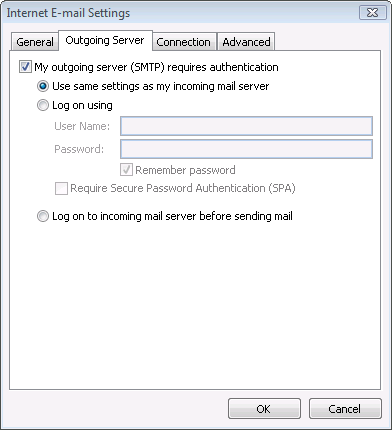
- In the Internet E-mail Settings window, go to the Outgoing Server tab. Check My outgoing server (SMTP) requires authentication and select Use same settings as my incoming mail server.
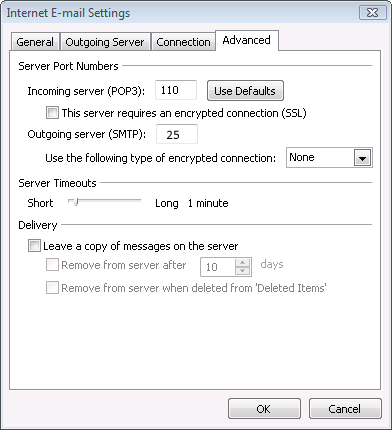
- Go to the Advanced tab. Verify that you have 110 for your incoming server (POP3) and 25 for your outgoing server (SMTP), and then click OK.
NOTE: If you have trouble sending email you can also try 26 for your outgoing server (SMTP) port.
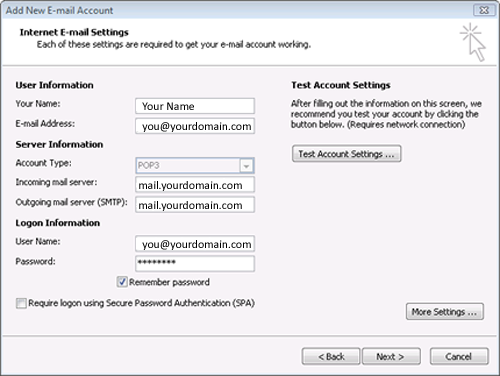
- Click Test Account Settings. Microsoft will send itself a message to test your incoming and outgoing capabilities. Once this is complete, click Next.
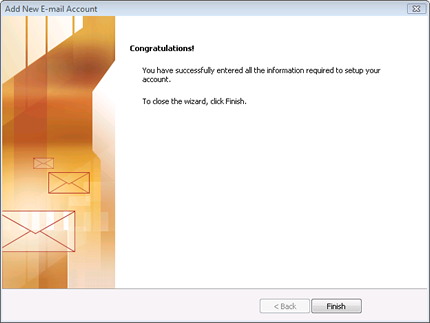
- Click Finish.
Back to FAQ
|