Back to FAQ
How to Set Up Mail for Mac OS X
Note: Replace "your-domain" with your domain name. For example the domain name of www.microsoft.com is "microsoft"
Open Mail.

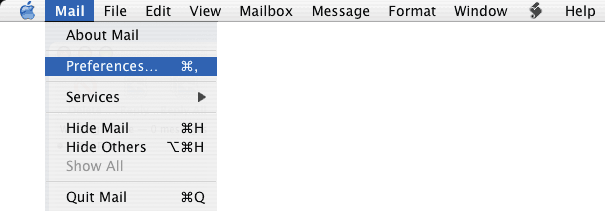
Once you've opened Mail, click on the menu labeled "Mail," and select "Preferences."
Make sure you have the Accounts Icon selected. You're presented with a window which contains three tabs, "Account Information, "Special Mailboxes," and "Advanced." First, let's look at the "Account Information" tab.
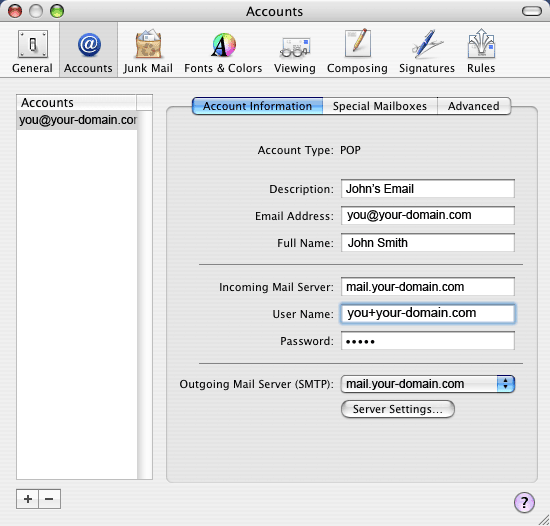
The Account type was determined when you set up the account. You cannot change it unless you delete this account and create a new one. The account type is POP.
Description can be whatever you like, but it is recommended that you use something descriptive.
Email Address should be your email address.
Full Name can be your name, or whatever text you'd like to be seen as your name when you send email.
Incoming Mail Server should be mail.your-domain.com
"User Name" should be your username+your-domain.com
Password is the password for your login name.
Outgoing Mail Server
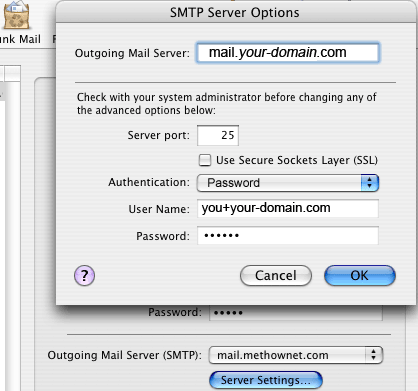
You can edit the Outgoing Mail Server by pressing the "Server Settings" button.
The Outgoing Mail Server should be mail.your-domain.com
The Server port" should be 25
Authentication should be set to "Password."
Next, there are the Special Mailboxes
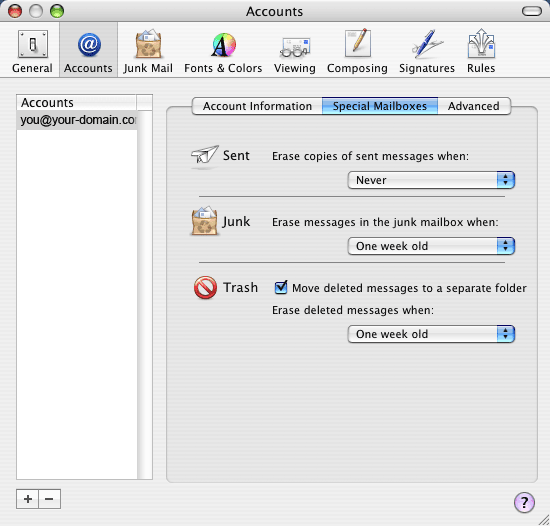
Set these three choices up according to your own preferences. They can all be left at Never if you want.
Last, please take a look at the Advanced options.
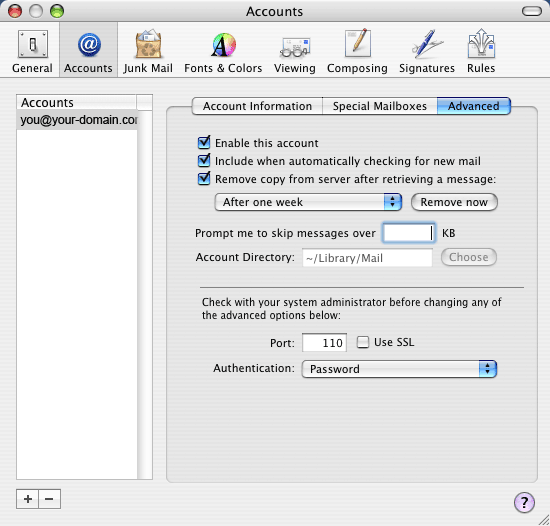
Enable this account means that you will be able to send and receive mail from this group of mail settings.
Include this account when automatically checking for new mail , keep that checked.
Remove copy from server after retrieving a message means that Mail will delete every message you download from the server after it's been downloaded, and after the time specified by the pull down menu just below that checkbox.
You can use the "Remove now" button to delete any old mail on the server that's sitting there right now, if you wish.
The port should be 110.
Authentication should be set to "Password."
For more information about the behavior of each of these advanced options, click on the "?" button in the lower-right corner of this window.
That's it! Press OK and close the account window. You are ready to use Mail for OS X.
Back to FAQ
|